macOS port monitor for developers

Every port,
process & pulse —
docked.

Pier is a featherweight monitor that lives in your menu bar. See what's listening on every port, which process is hogging the CPU, and your system's vitals — then act on them in one click.

↓ Download for macOS Apple Silicon & Intel · macOS 14+
or install with Homebrew
Native SwiftUI ~0% CPU at idle No app tracking EN / 中文
Pier ports panel Pier ports panel
// FOUR PANELS, ONE CLICK AWAY

Your Mac, read like an instrument panel.

Flip between four panels from the menu bar. Look, understand, and act — without ever opening a terminal.

Pier portsPier ports
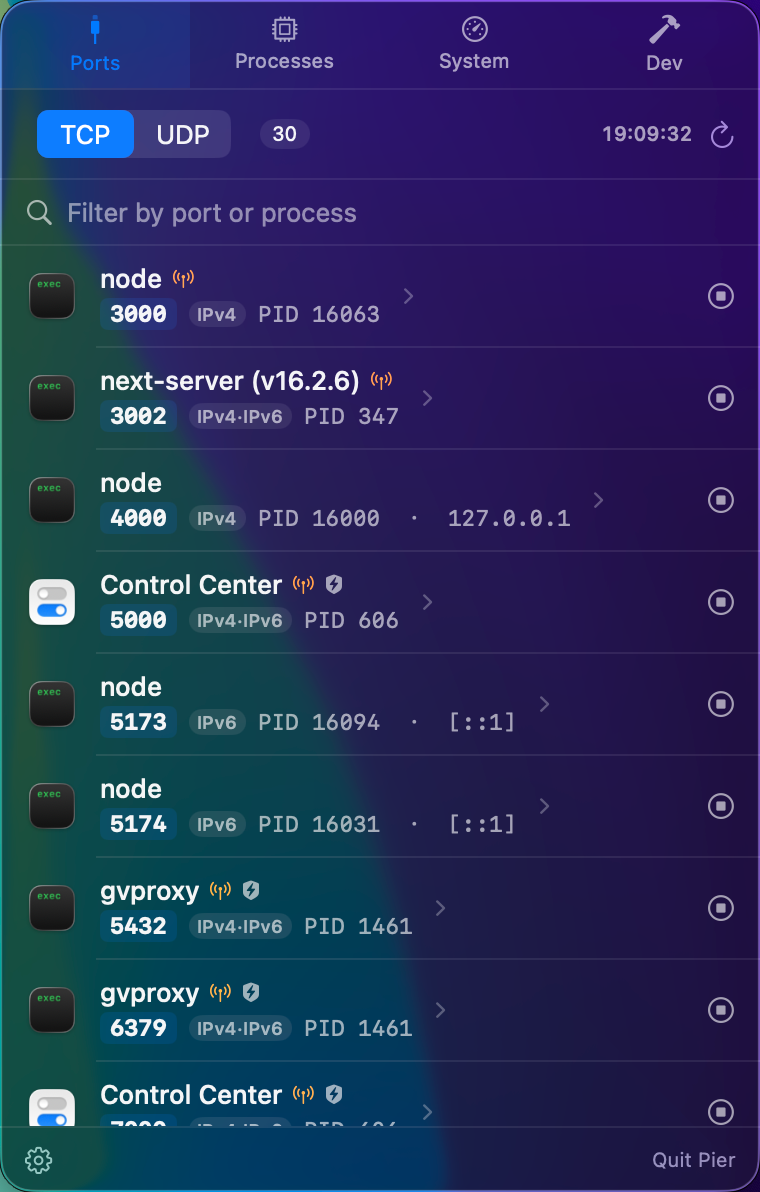
01 — PORTS

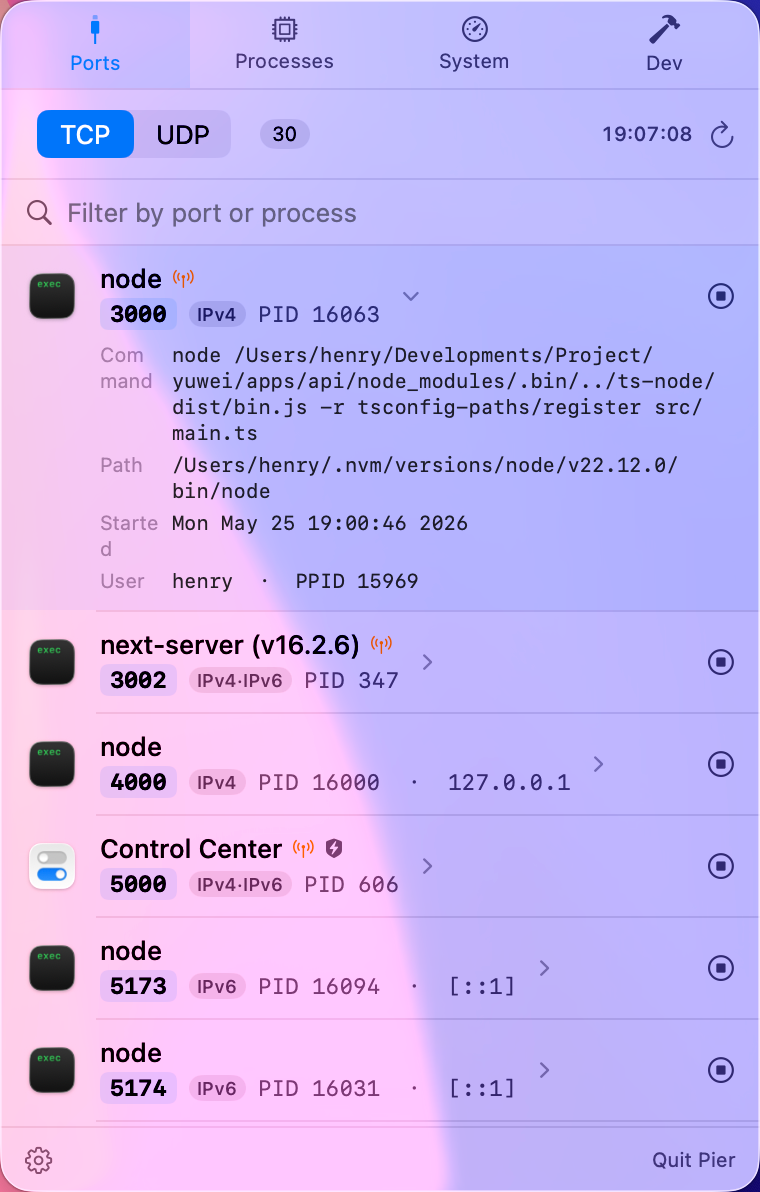
See what's listening

Every TCP & UDP port, the owning process and its app icon, the bound address, and an IPv4·IPv6 tag. A glance tells you what's exposed to the network — and one click ends it.

TCP / UDPIPv4 · IPv6exposure alertone-click kill
Pier processesPier processes
02 — PROCESSES

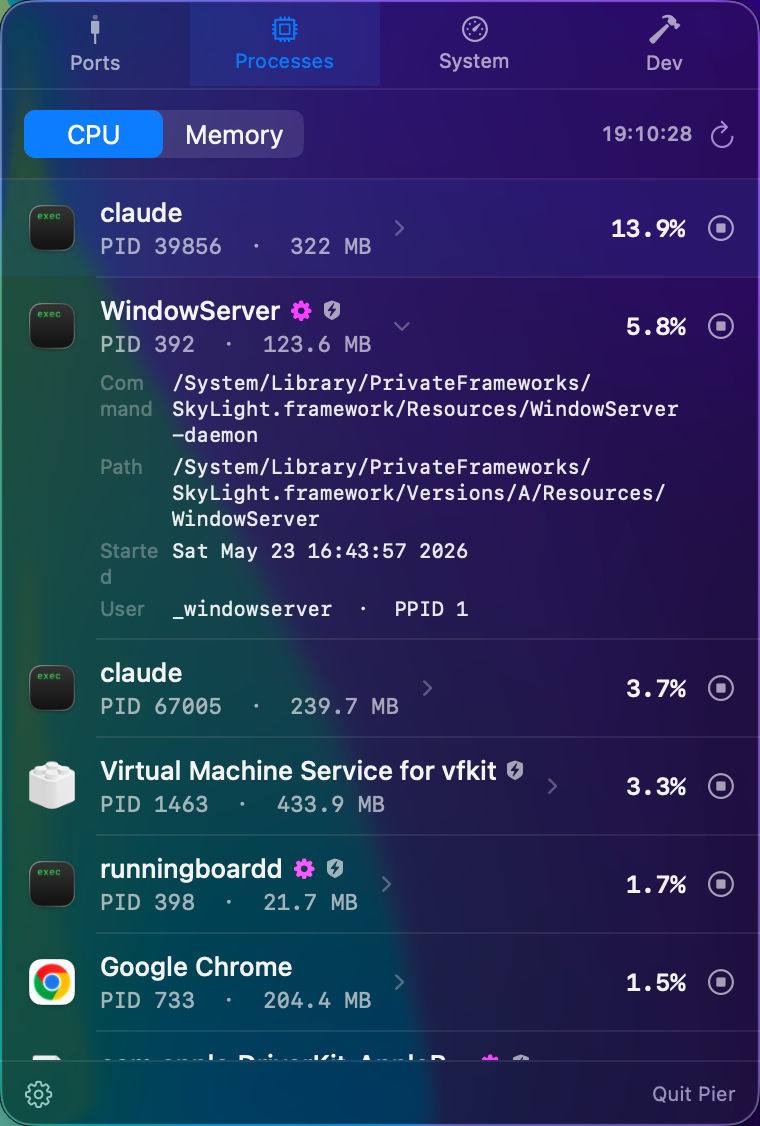
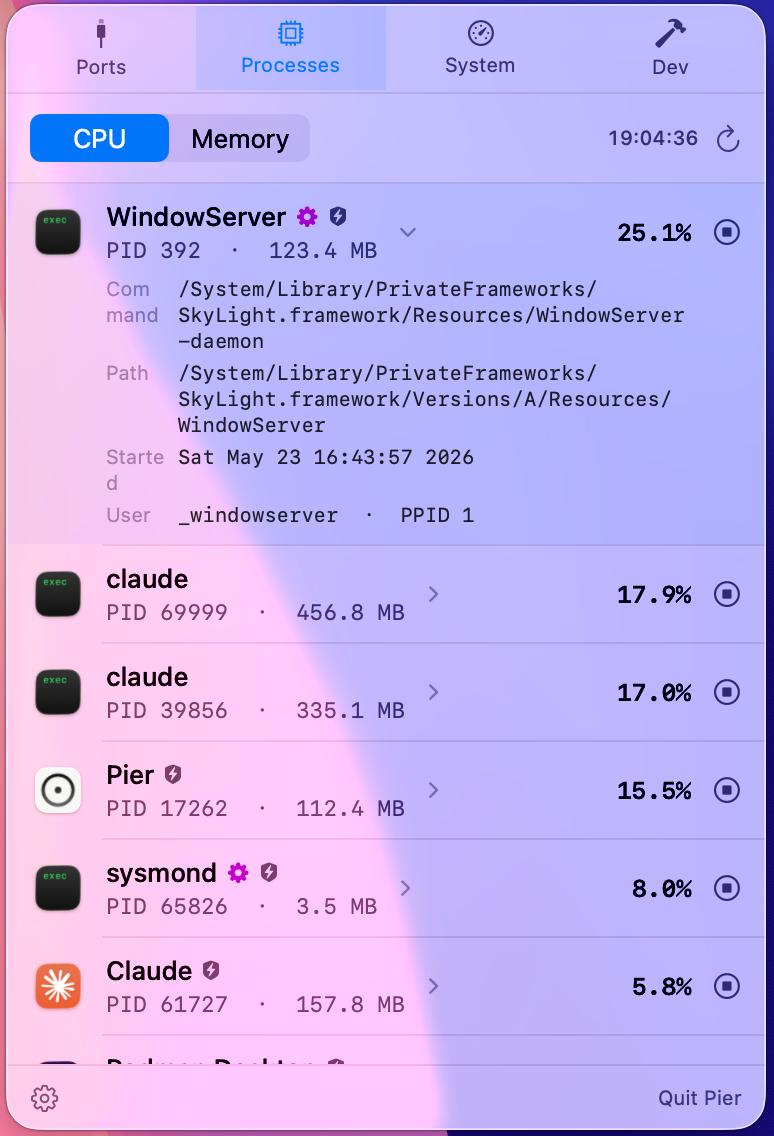
Find the hog, fast

Top processes ranked live by CPU or memory, with instant name search that goes beyond the Top N cap — find the background app that's been hiding past the cutoff. Expand any row for the full command line, path, and parent; then end or force-quit it.

CPU / memoryinstant searchfull command linesystem-process guard
Pier systemPier system
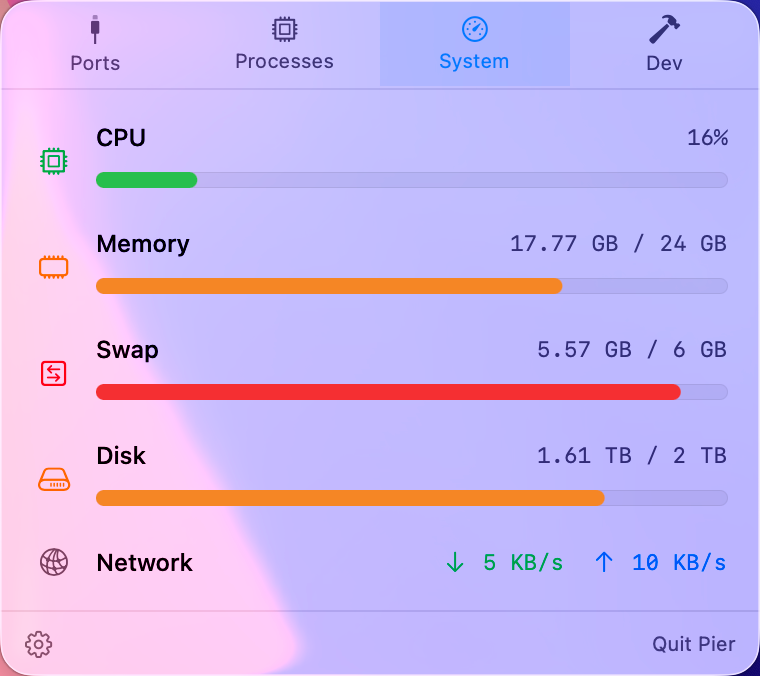
03 — SYSTEM

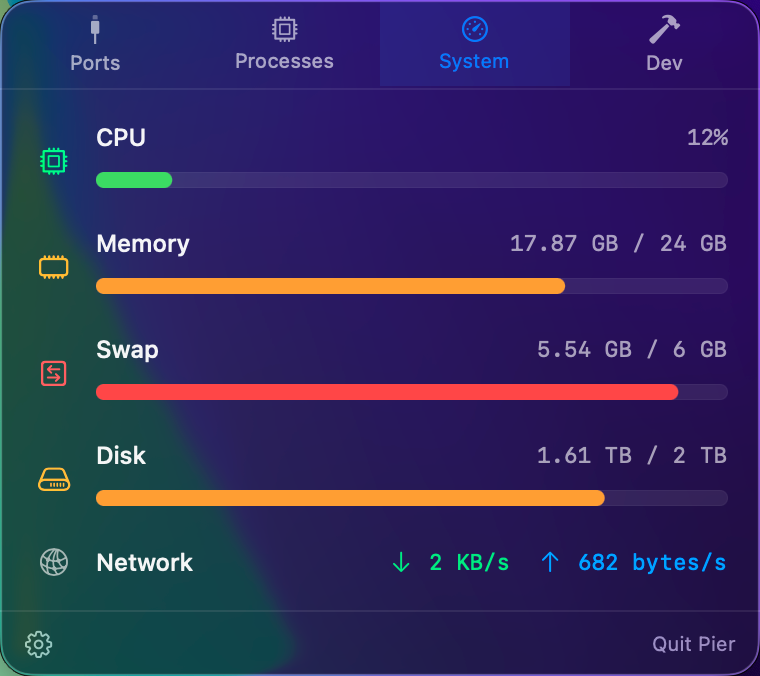
Vitals at a glance

CPU, memory, swap, disk, and live network throughput in one tidy panel. Pin any combination of CPU, memory, and network rates right next to the menu-bar icon — pick what you care about, leave the window closed.

live throughputmenu-bar readoutmulti-metric
Pier dev toolsPier dev tools
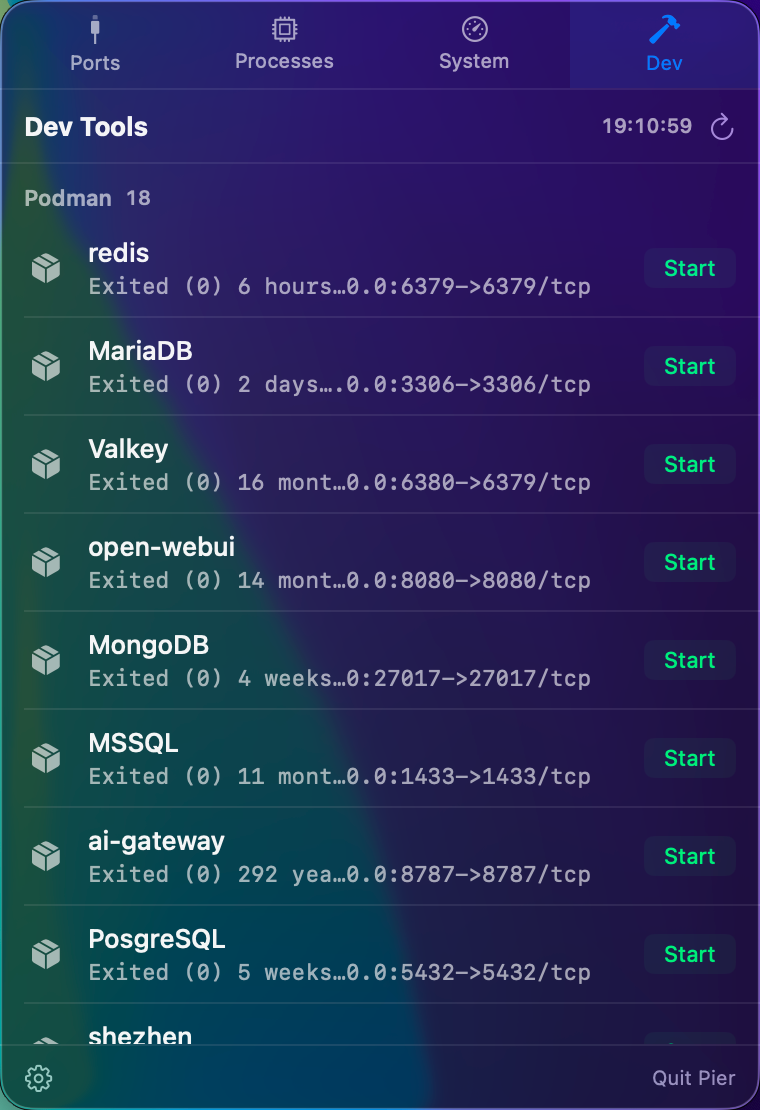
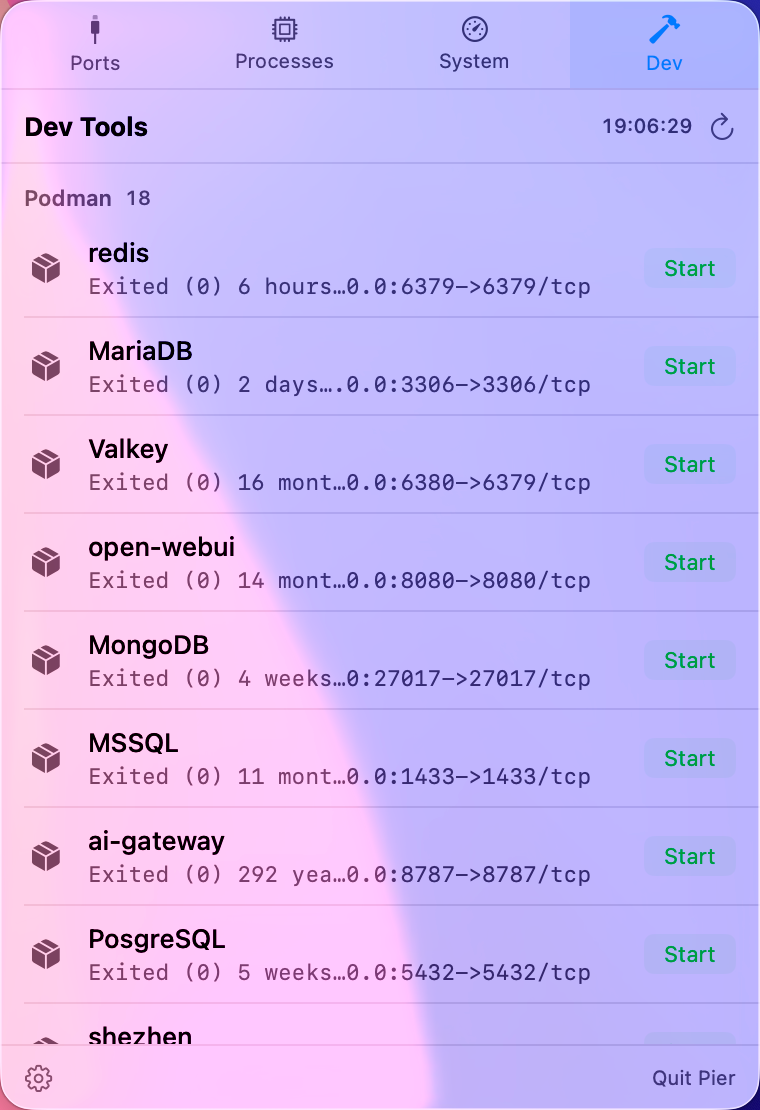
04 — DEV TOOLS

Skip the terminal

Start, stop, and restart your Docker / Podman containers and Homebrew services straight from the menu bar. Pier even detects when your docker is really Podman.

Docker · Podmanbrew services
// RECENT UPDATES

Quieter, quicker, more compatible.

⌕

Process search

Type a name — Pier finds it even if it's a sleepy background app buried past the Top N cutoff. Pair it with the new configurable Top N (10–500, or show all) in Preferences.

15

Complete on macOS 15

Sequoia quietly tightened lsof's access to root-owned sockets, hiding launchd / system daemons / privileged ports. Pier now combines lsof + netstat so the port list stays whole — every listening socket, regardless of owner.

✓

Quieter startup

Dev tab no longer hangs when Docker's daemon is off (6s hard timeout). Launch and licensing flows stay quiet unless you need them.

// LOCAL DEV WORKFLOWS

Built around the checks developers repeat every day.

Pier is most useful when a local service, container, or background process is sitting between you and the next run.

// WHY PIER

A monitor that doesn't become the problem.

~0%
Featherweight
Native SwiftUI. Idle CPU rounds to zero — it samples only when you're looking.
100%
Local & private
No accounts, no ads, no app telemetry. Your ports, processes, and system data never leave your Mac — Pier only goes online to check for updates and verify your license.
⌘
Always in reach
Lives in the menu bar. One click in, one click out — no Dock clutter.
Bilingual & dark
English / 中文, switchable instantly. Light, dark, or follow the system.
// PRICING

Pier on your Mac.

Universal build · macOS 14+ · Apple Silicon & Intel

$6.99 Suggested price — pay what you want, from $0.99 one-time purchase · activates on up to 5 Macs
  • You choose the amount at checkout — every price unlocks the same full license
  • 14-day free trial, no credit card
  • All features + all 2.x updates
  • Universal build — Apple Silicon & Intel
  • Developer ID signed & notarized
Buy Pier — pay what you want
or try free for 14 days →
or install with Homebrew
// FAQ

Good questions.

How does pay-what-you-want pricing work?+

At checkout you type the amount yourself — minimum $0.99, suggested $6.99. Whatever you pay, you get exactly the same thing: one full license, up to 5 Macs, all 2.x updates, one-time. No tiers, no hidden upsells. If Pier saves you time, pay what it's worth to you.

Why isn't Pier on the Mac App Store?+

Pier needs to see every process and act on it — listing ports, reading other processes, ending them. The App Store sandbox forbids that. So Pier is distributed directly, signed with a Developer ID and notarized by Apple, so Gatekeeper trusts it.

How do I move my license to a new Mac?+

Two steps. If the old Mac is still around: open Pier's Preferences → License and click Deactivate on this Mac — that frees up its activation slot. Then enter the same license key on the new Mac. Old Mac already wiped or gone? Just activate on the new one — one key covers up to 5 Macs, and if you ever run out of slots, email [email protected] and we'll release the ones held by retired machines. There's no account to sign in to: your key is the license. Upgrading macOS doesn't touch your activation; before erasing a Mac, deactivate first so the slot comes back.

How do activation slots work?+

Each activated Mac holds one of your license's 5 slots. Deactivating (Preferences → License → Deactivate on this Mac) releases its slot instantly, so you can move between machines freely — fully self-serve. If a Mac was wiped, sold, or died before you could deactivate, email [email protected] and we'll release its slot for you.

I lost my license key. How do I get it back?+

Your key is in the purchase confirmation email from Dodo Payments (our payment provider). Can't find it? Email [email protected] from the address you used at purchase and we'll look it up.

Which updates are included?+

All 2.x releases — features and fixes — at no extra cost. Your license is perpetual: the versions you've bought keep working forever, with no subscription and no forced upgrade. If a paid 3.0 ever happens, 2.x will keep working as-is.

Does it phone home?+

Your monitoring data never does — ports, processes, and system stats are read on-device and never uploaded. Pier itself goes online only to check for updates (you can turn that off) and to activate and periodically verify your license. No third-party analytics or ad trackers.

Will it slow down my Mac?+

It's built in native SwiftUI and samples only while a panel is open or a menu-bar readout is enabled. Idle CPU rounds to zero — a resource monitor shouldn't be a resource hog.

Which Macs are supported?+

macOS 14 (Sonoma) and later, on both Apple Silicon and Intel.

Can I kill any process?+

You can end any process you own. System processes (owned by root) are flagged and guarded with a confirmation — and ending a launchd-managed daemon will just respawn it, which Pier tells you up front.